Quick-Start
The Quick-Start guide explains how in a few steps you get from an API definition to a functional Rust example.
Steps one and two are universal for other technologies. In step two you will choose a concrete rust template. For more general information about first steps with ApiGear see First Steps.
The quick start enables only basic features: the api generation and a ready-to-use stub implementation. For all available features check the overview.
1. Install the Code Generator
ApiGear provides two powerful tools: a Studio and a Command Line Interface (CLI). The Studio is a graphical tool for creating, editing API modules and projects, while the CLI is a command-line tool for generating code from API modules. Both offer comprehensive functionality, including SDK template management, API project creation, code generation, API monitoring, and API simulation.
Install ApiGear Studio
ApiGear Studio is available for macOS, Windows, and Linux. You can download it from the ApiGear Studio GitHub releases page.
For more detailed information on ApiGear Studio, refer to the dedicated studio documentation.
Install ApiGear CLI
The ApiGear CLI is a versatile command-line tool for generating code from API modules. It's available for macOS, Windows, and Linux. Download the latest version from the ApiGear CLI GitHub releases page.
The CLI offers all the features available in the Studio.
For more detailed information on the ApiGear CLI, consult the dedicated CLI documentation.
2. Obtain the Template
There are several methods to obtain the template: installation via the Studio, installation via the CLI, or cloning/downloading from GitHub.
The ApiGear Studio and the CLI detect the specified template in the solution document and install it automatically.
Optional steps (click to expand)
Installation via CLI
When using the CLI, only the highlighted line needs to be executed. You can verify the successful installation using the template cache command.
- Unreal Engine
- C++14
- Qt6
- Python
$ apigear template install apigear-io/template-unreal@v3.2.2
$ apigear template cache
list of templates from the local cache

source                            | url                                               | installed | latest
apigear-io/template-unreal@v3.2.2 | https://github.com/apigear-io/template-unreal.git | <sha1>    | v3.2.2
...
$ apigear template install apigear-io/template-cpp14@v3.6.0
$ apigear template cache
list of templates from the local cache

source                            | url                                               | installed | latest
apigear-io/template-cpp14@v3.6.0  | https://github.com/apigear-io/template-cpp14.git  | <sha1>    | v3.6.0
...
$ apigear template install apigear-io/template-qtcpp@v0.4.0
$ apigear template cache
list of templates from the local cache

source                            | url                                               | installed | latest
apigear-io/template-qtcpp@v0.4.0  | https://github.com/apigear-io/template-qtcpp.git  | <sha1>    | v0.4.0
...
$ apigear template install apigear-io/template-python@v1.0.0
$ apigear template cache
list of templates from the local cache

source                            | url                                               | installed | latest
apigear-io/template-python@v1.0.0 | https://github.com/apigear-io/template-python.git | <sha1>    | v1.0.0
...
Installation via Studio
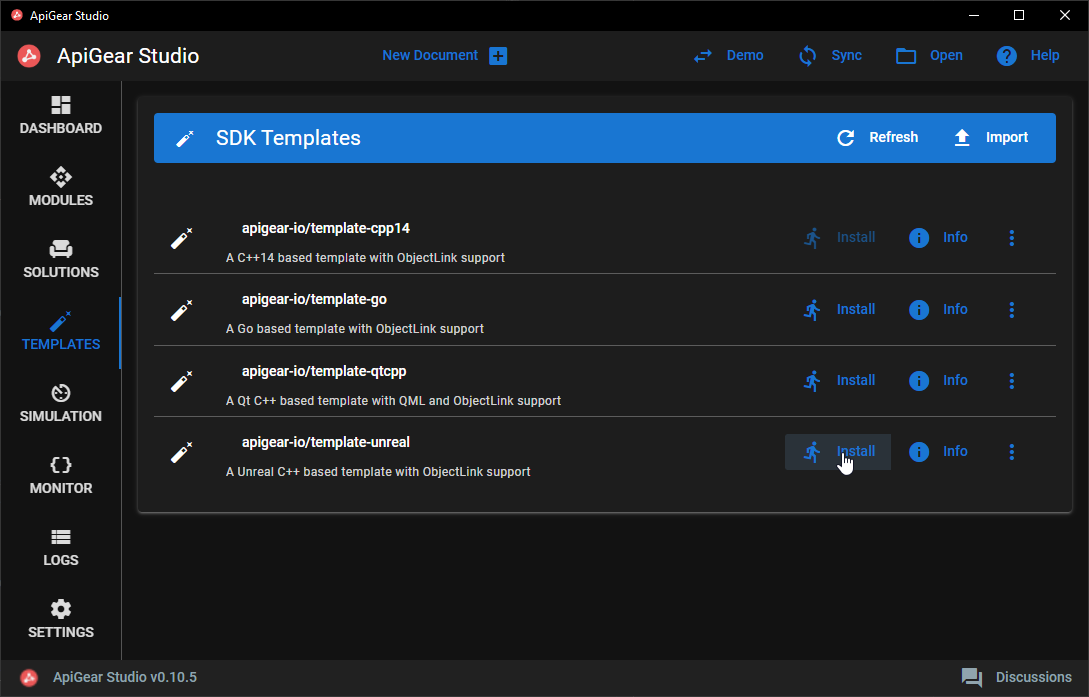
Installing the template through the Studio is straightforward:
- Unreal Engine
- C++14
- Qt6
- Python
- Open an existing project or create a new one
- Navigate to the
Templatestab - Click
Installon theapigear-io/template-unrealentry
- Open an existing project or create a new one
- Navigate to the
Templatestab - Click
Installon theapigear-io/template-cpp14entry
- Open an existing project or create a new one
- Navigate to the
Templatestab - Click
Installon theapigear-io/template-qtcppentry
- Open an existing project or create a new one
- Navigate to the
Templatestab - Click
Installon theapigear-io/template-pythonentry
Cloning from GitHub
If you need to inspect or modify the template's source code, cloning or downloading the repository is recommended. The repository doesn't need to be part of your project and can be stored anywhere on your computer.
- Unreal Engine
- C++14
- Qt6
- Python
$ git clone https://github.com/apigear-io/template-unreal.git
$ git clone https://github.com/apigear-io/template-cpp14.git
$ git clone https://github.com/apigear-io/template-qtcpp.git
$ git clone https://github.com/apigear-io/template-python.git
You can then configure the solution file to use your template by providing the relative path from the solution file to the template directory.
3. Set Up the Project
A typical project requires two files: a solution file specifying the APIs and the template to use, and at least one API module file. Ideally, both should be placed in a folder named apigear, adjacent to each other.
Alternatively, you can use the Studio to create a new project and modify the two example files provided.
Solution File
Create a solution file. The example below specifies:
- Module files in line 8, here the
helloworld.module.yamlmodule with theHelloAPI - The output directory for generated files in line 9
- The template used to generate the code in line 10 (this can also be a path to a local copy of the template)
- The enabled features of the template in line 13, here the
stubsfeature, which provides a simple implementation of interfaces.
- Unreal Engine
- C++14
- Qt6
- Python
schema: "apigear.solution/1.0"
name: hello_world_example
version: "0.1.0"

targets:
  - name: ue_docs
    inputs:
      - helloworld.module.yaml
    output: ../ue_docs
    template: apigear-io/template-unreal@v3.2.2
    force: true
    features:
      - stubs
schema: "apigear.solution/1.0"
name: hello_world_example
version: "0.1.0"

targets:
  - name: cpp_hello_world
    inputs:
      - helloworld.module.yaml
    output: ../cpp_hello_world
    template: apigear-io/template-cpp14@v3.6.0
    force: true
    features:
      - stubs
schema: "apigear.solution/1.0"
name: hello_world_example
version: "0.1.0"

targets:
  - name: qt_hello_world
    inputs:
      - helloworld.module.yaml
    output: ../qt_hello_world
    template: apigear-io/template-qtcpp@v0.4.0
    force: true
    features:
      - stubs
schema: "apigear.solution/1.0"
name: hello_world_example
version: "0.1.0"

targets:
  - name: hello_world
    inputs:
      - helloworld.module.yaml
    output: ../py_hello_world
    template: apigear-io/template-python@v1.0.0
    force: true
    features:
      - stubs
You can extend this solution file with additional targets, each for a different technology with a different template. The module.yaml file is technology-independent and can be used with any template.
We highly recommend specifying the exact version of the template. Otherwise, a newer version will be automatically downloaded and used for code generation. This can lead to unexpected behavior if file structures or code changes in the template.
Set the force parameter to true if you want to always override all generated files. When set to false, some files, such as implementations (stub feature), won't be updated. API files are always updated regardless of this setting.
API Module File
Use your preferred text editor to create the helloworld.module.yaml file with the following example content:
schema: apigear.module/1.0
name: io.world
version: "1.0.0"

interfaces:
  - name: Hello
    properties:
      - { name: last, type: Message }
    operations:
      - name: say
        params:
          - { name: msg, type: Message }
          - { name: when, type: When }
        return:
          type: int
    signals:
      - name: justSaid
        params:
          - { name: msg, type: Message }
enums:
  - name: When
    members:
      - { name: Now, value: 0 }
      - { name: Soon, value: 1 }
      - { name: Never, value: 2 }
structs:
  - name: Message
    fields:
      - { name: content, type: string }
4. Generate Code
Generate via CLI
The following snippet demonstrates how to run the CLI and provides an example output:
$ apigear generate solution apigear/helloworld.solution.yaml
10:52:20 INF generated 21 files in 30ms. (20 write, 0 skip, 1 copy) topic=gen
- The
generatecommand instructs the CLI to generate code - The
solutionparameter specifies that we want to process a solution file
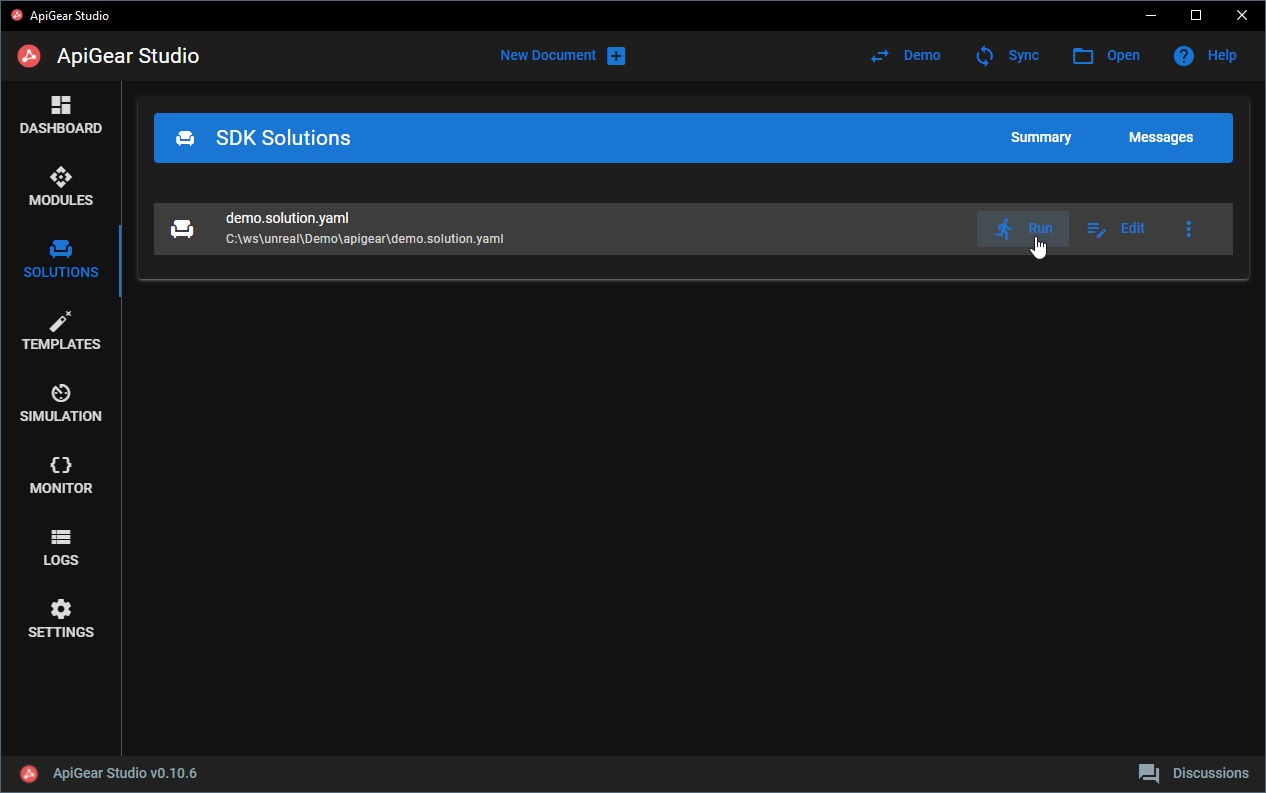
Generate via Studio
- Open the project
- Navigate to the
Solutionstab - Click
Runon thehelloworld.solution.yamlentry
5. Use the generated Cargo workspace
The rust template generates a Cargo workspace. Each API module becomes its own member crate, and a shared examples crate ties them together with runnable programs. To build and run the code you need a working Rust toolchain (rustc and cargo, 1.80 or newer).
Basic Rust knowledge is necessary.
Project folder structure
With the output directory set as in the example, both ApiGear files reside in an apigear subfolder next to the generated Rust workspace.
In this case the folder structure should look similar to this:
📂hello-world
 ┣ 📂apigear
 ┃ ┣ 📜helloworld.solution.yaml
 ┃ ┗ 📜helloworld.module.yaml
 ┣ 📂rust_hello_world
 ┃ ┣ 📜Cargo.toml          # workspace manifest (lists every module crate)
 ┃ ┣ 📜rustfmt.toml
 ┃ ┣ 📂io_world            # one crate per module
 ┃ ┃ ┣ 📜Cargo.toml
 ┃ ┃ ┣ 📂src
 ┃ ┃ ┃ ┣ 📜lib.rs
 ┃ ┃ ┃ ┣ 📂api             # interface traits + Publisher + data structs/enums
 ┃ ┃ ┃ ┣ 📂core_types      # property bundle + shared reference
 ┃ ┃ ┃ ┗ 📂implementation  # ready-to-use default impl
 ┃ ┃ ┗ 📂tests             # per-interface unit tests
 ┃ ┗ 📂examples            # runnable example programs
Using the solution file from the previous paragraph the code is generated in the rust_hello_world folder, with a subfolder (member crate) for each module — here io_world, the name of the module defined in line 2 of helloworld.module.yaml. It contains both generated features: the basic api and a stub implementation.
The io_world/src/api/ folder contains the trait definitions for your interfaces along with the serde-enabled enums and structs for your module, while io_world/src/core_types/ holds the per-interface support types (a property bundle for state sync and a shared-reference helper). The io_world/src/implementation/ folder holds a default implementation you can use as-is or build on.
For the simulation, check the olink feature which provides a middle layer on your code side, and the simulation explained.
Build the workspace
Open a terminal, navigate to the generated rust_hello_world folder and build everything with Cargo:
cargo build
cargo resolves the workspace from the top-level Cargo.toml, downloads the dependencies, and compiles every module crate together with the examples crate.
Run an example
The generated examples crate ships a runnable program that exercises every interface in-process — calling operations, setting properties and listing available signals. Run it with:
cargo run -p rust_hello_world_examples
The example crate's package name is derived from your solution target, with an _examples suffix. If your target is named rust_hello_world, the package is rust_hello_world_examples. Check the [package] name in examples/Cargo.toml and run cargo run -p <name> accordingly.
Run the tests
Each interface comes with a generated unit test that instantiates the default implementation and exercises its operations and properties. Run them with:
cargo test
From now on you can simply add your module crate to your own Cargo.toml as a dependency and use the generated traits, data types and default implementation.
For more details on the generated features please check api and stubs.